
How to use
Five minutes from install to your first conti. Screens show one real reel analyzed in English mode.
Install
- On the Reelscope page in the Chrome Web Store, click Add to Chrome.
- Click the puzzle icon next to the address bar and pin Reelscope so it stays in the toolbar.
- Click the icon to open the side panel on the right. Everything happens in this panel.
Works in desktop Chrome (or a Chromium-based browser). Not available in mobile apps.
Sign in
Click Continue with Google at the top of the panel. Free users get 4 credits a month for light analyses (refilled on the 1st); detailed analysis and contis come with a subscription. No card, no API key, no other setup.
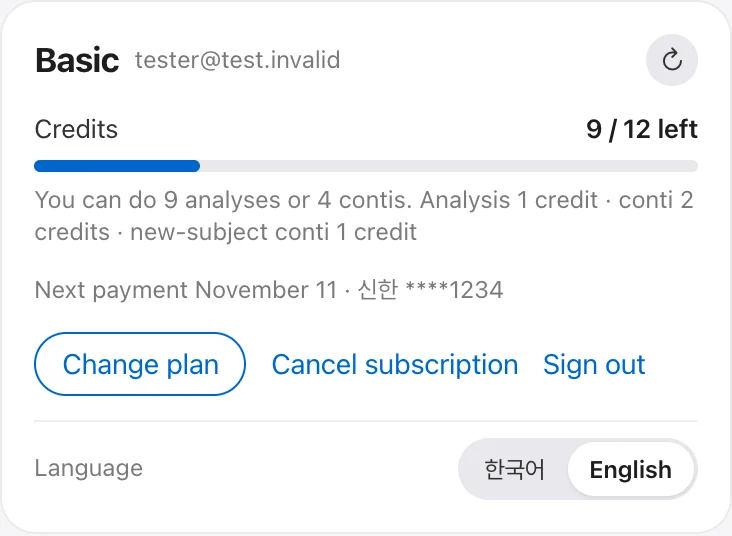
Once signed in, your plan and remaining credits show at the top right of the panel. Click it to open your account. Switch between 한국어 and English at the bottom of the account card — new reports come out in the language you choose.
Analyze a reel
Open the reel you want on Instagram, then use whichever is easiest:
- The panel’s Analyze this reel button
- Right-click on the reel → Analyze this reel (Reelscope)
- Shortcut Alt + Shift + R
Press it on several reels as you scroll and they pile up in the list, analyzed one at a time. The list shows queued · analyzing · done, and finished items show their hook type and strength in one line.
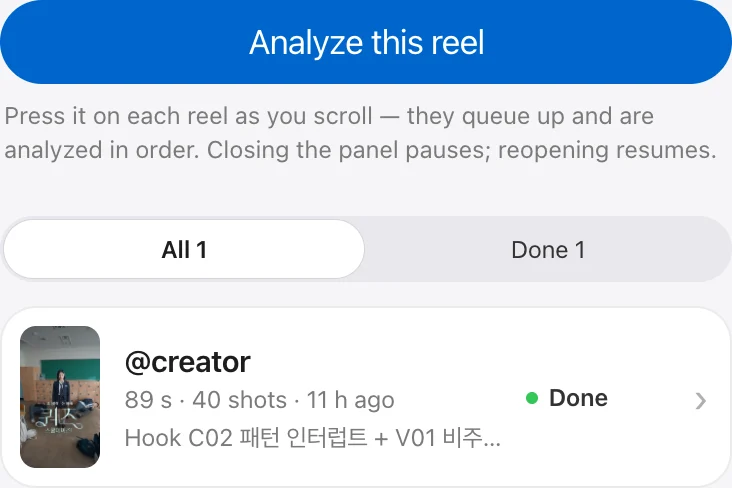
Analysis runs: download source → measure cuts, camera and color → measure audio → AI analysis → comment reactions. Usually about a minute; longer videos take a bit more.
Keep one tab signed in to Instagram open so it can read the reel. Closing the panel pauses the queue; reopening resumes it.
Read the report
The detail view has four tabs: Report · Conti · Script · Download.

Read the report top to bottom:
- Story
- What happened. Events marked Inferred are not shown directly but follow from the shots around them.
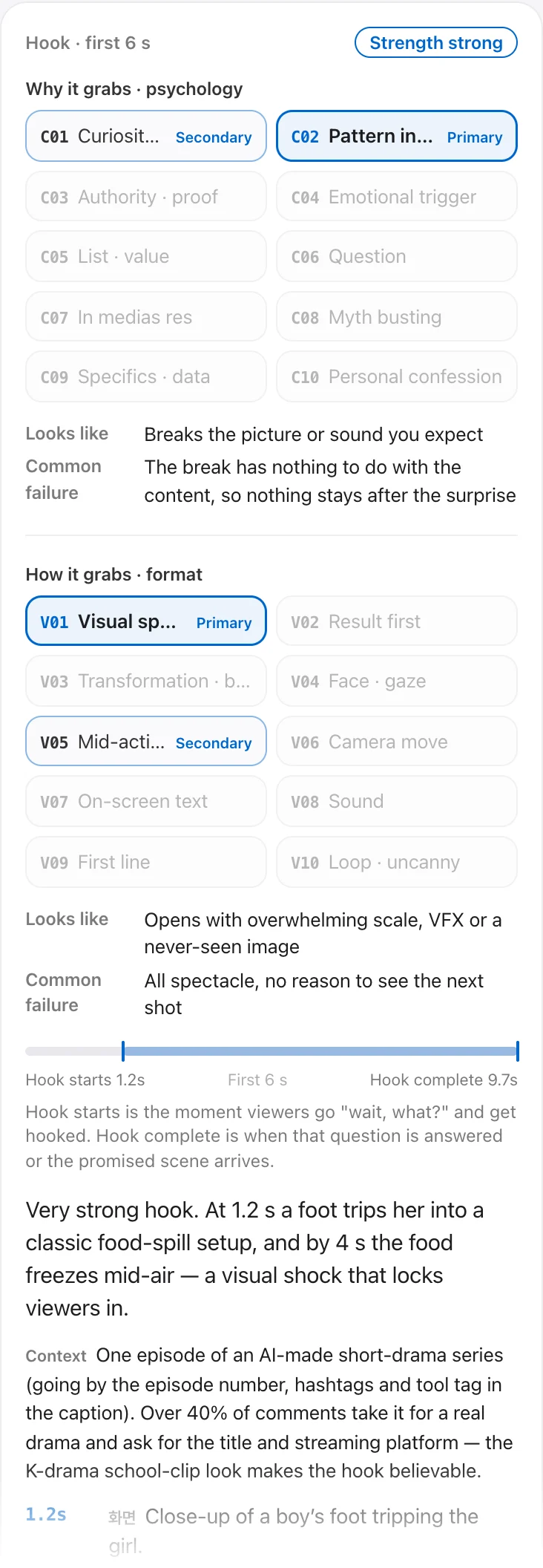
- Hook · first 6 s
- The bold tile is the primary type, the light one the secondary. Hover a tile for a second to see what that type means.
- Emotion curve
- Higher means stronger emotion. The strip below is the measured loudness. Hover a point to see its cue.
- Comment reactions
- Reactions grouped by theme with shares, plus viewer questions. If more comments came in, use Analyze comments again.
- Style · sound
- Camera, light, color and editing; music, hits and silences. Numbers (BPM, cut sync) are measured values.
- Takeaways
- Three things to apply to your own video.
- Limits
- What was estimated and what could not be confirmed, stated plainly.
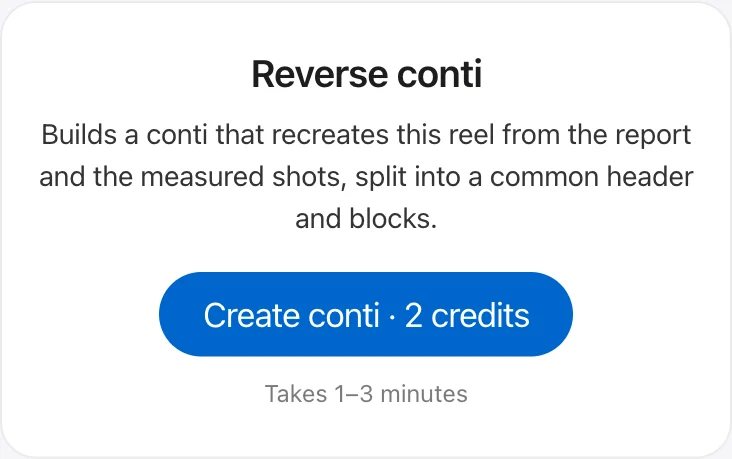
Make a conti Subscription · 2 credits
In the Conti tab, click Create conti. It takes 1–3 minutes, and you can watch progress and the text being written live. It keeps going if you switch tabs.
The conti comes in two parts:
- Common — title, format, genre and style, characters, setting and assets. Goes in front of every block.
- Blocks — shot descriptions in 20–25 s chunks, written so each block still makes sense on its own.
Use Copy on each card, or With common to copy the common part and that block together. In your video generator, paste the common part once and each block in turn.
Make it with a new subject Subscription · 1 credit
Under Make it with a new subject at the bottom of the Conti tab, keep the reel’s hook, shot timing and twist and swap in new characters, places and events.
- Suggest 5 topics — AI suggests topics that fit the same structure. Uses no credits. Click one to create it right away.
- Write your own — describe your subject in the box and click Make a conti with this structure.
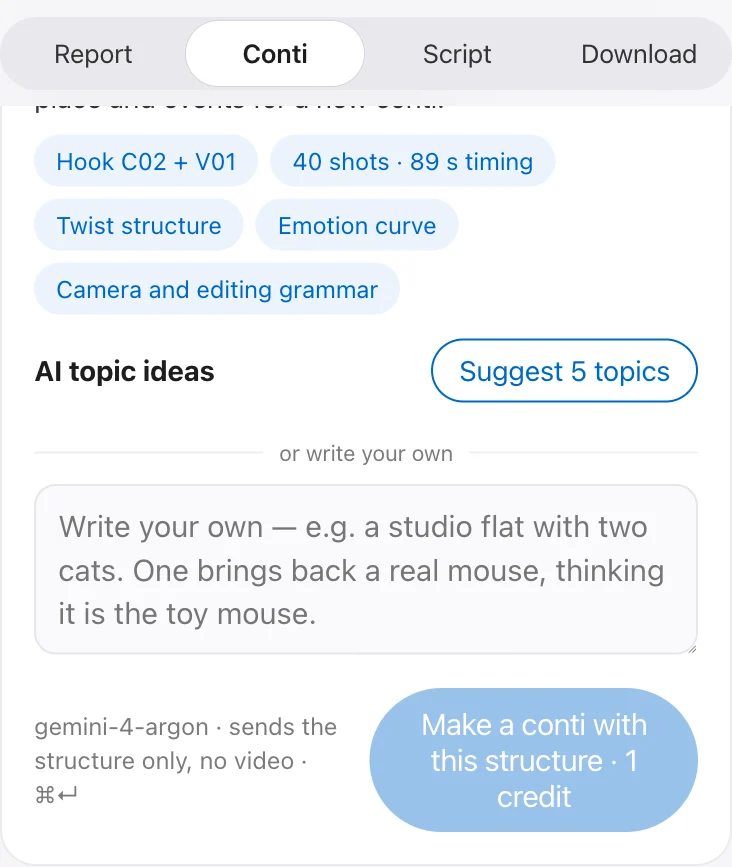
This is for borrowing a structure and remaking it with your own subject. Recreating someone else’s video as is may infringe their copyright.
Save
Get the report as a file from the Download tab.
- PDF — when the print page opens, choose Save as PDF as the destination.
- Markdown — paste straight into Notion, Obsidian or any notes app. Your contis are included.
- Measurement data — raw shot, motion, color and audio measurements (JSON). Available for reels with a detailed analysis.
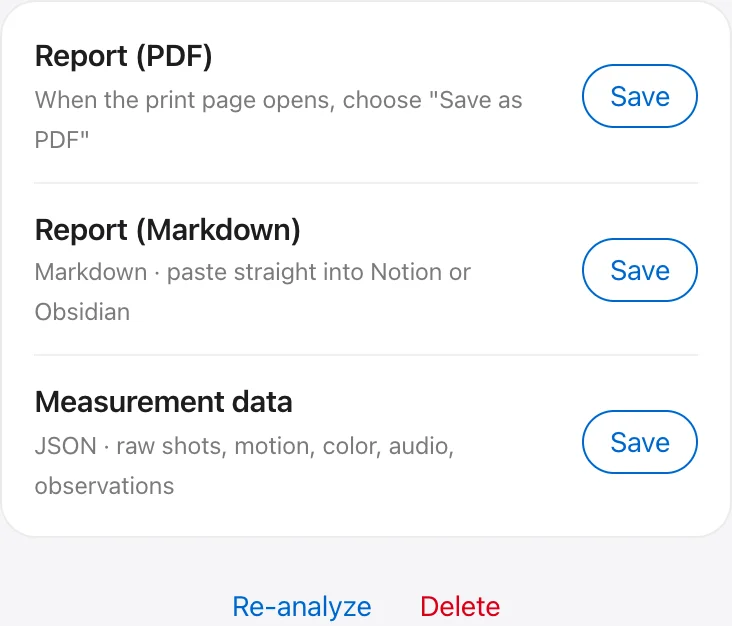
Your analysis history lives in this browser. Save files if you want them on another computer.
Credits and plans
| Action | Credits |
|---|---|
| Light analysis (free credits · summary · main hook type · emotion curve) | 1 |
| Detailed analysis (full report, comment reactions included) | 1 |
| Conti | 2 |
| New-subject conti | 1 |
| 5 topic ideas | 0 |
Free analyses lock the detailed sections; use See detailed analysis on the locked card to analyze the same reel in full (1 credit). Failed analyses and contis give the credits back. When the free analysis is used up or credits run out, queued analyses pause and the plans appear.
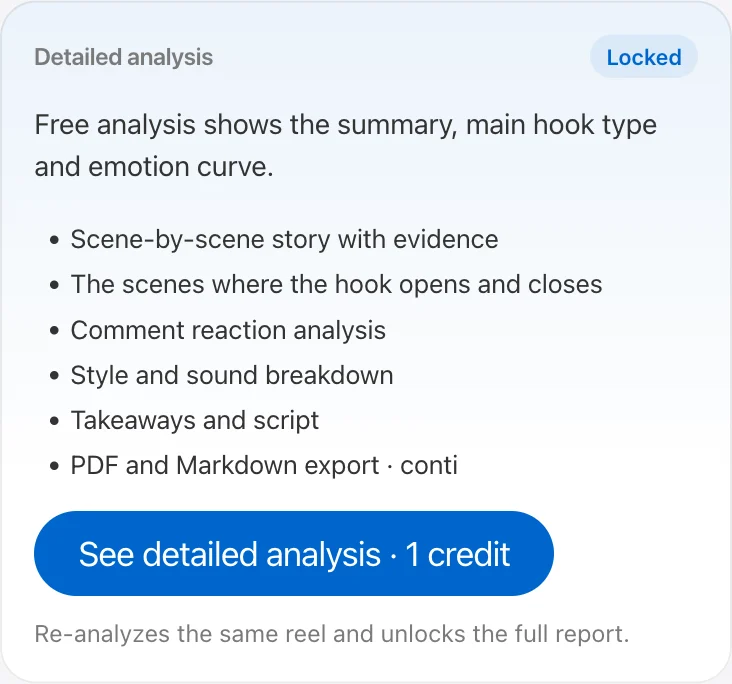
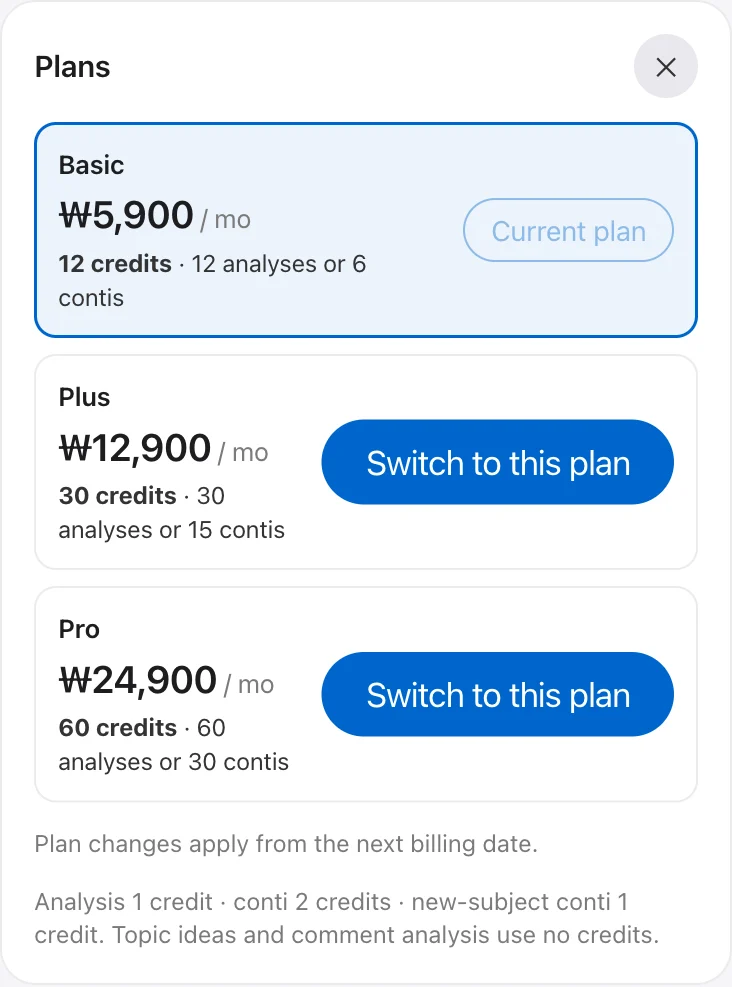
- Subscribe from your account: See plans → Subscribe. Register a card on the checkout page and it applies immediately.
- Upgrades apply right away and you pay only the difference. Downgrades switch on your next billing date.
- After Cancel subscription you keep using it until the end of the paid period.
Troubleshooting
- “No Instagram tab is open”
- Open a tab signed in to Instagram and it continues automatically.
- The analysis seems stuck
- It pauses when the panel closes. Reopen the panel and queued items resume. For failed items, click Try again.
- “You were signed out”
- Click the account icon and sign in again. Your history is still there.
- Can’t make a conti for an old reel
- Only the latest 15 source videos are kept. Click Re-analyze in the Download tab to fetch it again, then create it (1 credit).
- Anything else
- Email us at the address below — see the refund policy too.